
628
18.6k users
Figma to Shopify with Instant
Figma to Shopify with Instant
Figma to Shopify with Instant
Build responsive Shopify pages and sections 10X faster with the Figma to Shopify plugin by Instant.
Build responsive Shopify pages and sections 10X faster with the Figma to Shopify plugin by Instant.
Figma Project
W
100%
Share
Recommended products
More to discover

dARK GREEN SHIRT
$99
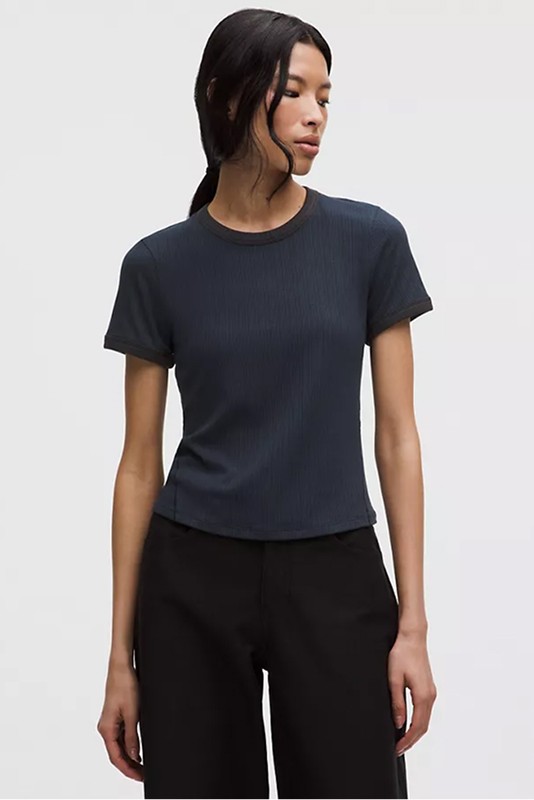
nAVY bLUE TOP
$99

wHITE SHORT SLEEVED SHIRT
$99

Gym kit
$99
Figma to Shopify with AI
Generate a prompt
We’ll generate and prepare a ready-to-use prompt from your selected frame.
Create Instant account
Generate prompt
AI Mode
Classic















Trusted by 20.000+ ecom brands
5.0

Summit
eCommerce store
Pages
Home
Product Detail Page
Product Collection
Header
Footer
fashion.myshopify.com
Recommended products
More to discover
dARK GREEN SHIRT
$99
nAVY bLUE TOP
$99
wHITE SHORT SLEEVED SHIRT
$99
Gym kit
$99
Features
Figma design to Shopify with AI
Copy and paste any Figma frame to Instant and publish to your Shopify store in seconds without code.
Copy and paste any Figma frame to Instant and publish to your Shopify store in seconds without code.
Copy and paste any Figma frame to Instant and publish to your Shopify store in seconds without code.




Figma to Shopify with AI
Generate a prompt
We’ll generate and prepare a ready-to-use prompt from your selected frame.
Create Instant account
Generate prompt
AI Mode
Classic
Get started in seconds
Simply copy any frame in Figma and paste it into the Instant Page Builder.
Velasca
Free


w
1680

100%


Preview
Publish
Layers
Search
Ctrl + F
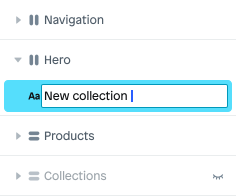
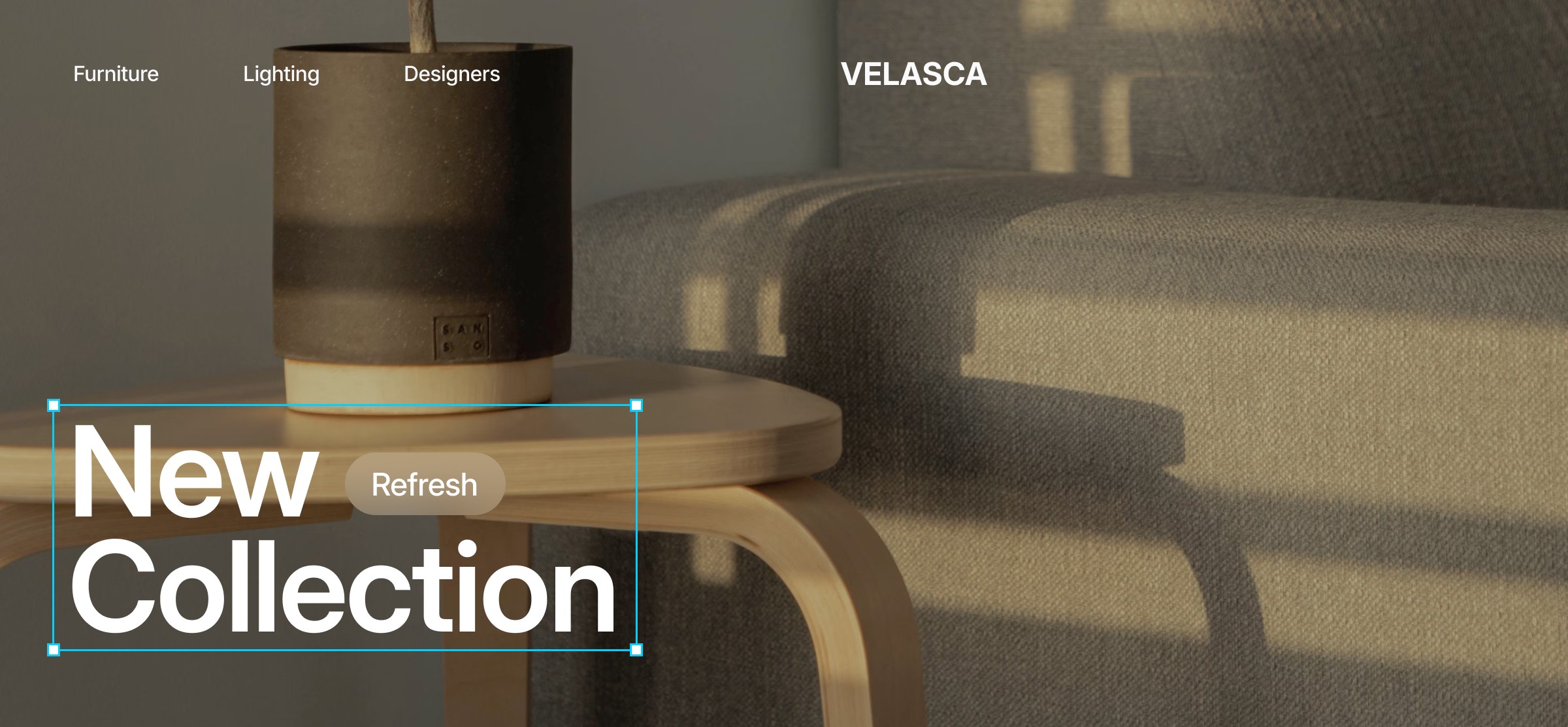
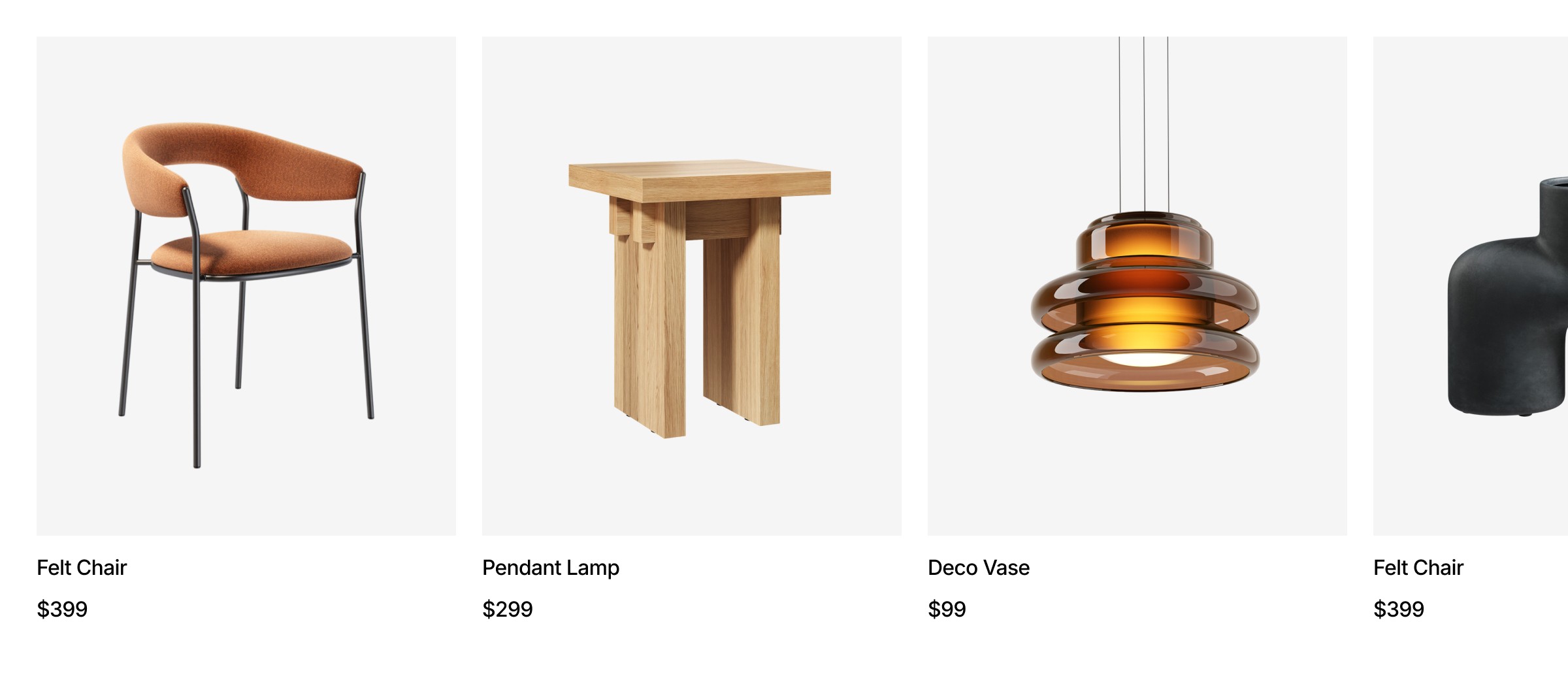
Pixel perfect copy
Your organization of layers and names will stay the same, making it easy to continue from where you left off.
Veloce
Free
w
1680
100%
Preview
Publish
Shopify data
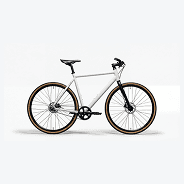
Connected
Cruiser 2026
Search
Ctrl + F
Image 1
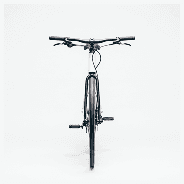
Image 2
General
1
Product Title
Cruiser 2026
Vendor
Veloce
Price
1
Price
$1999
Compare price
$2299
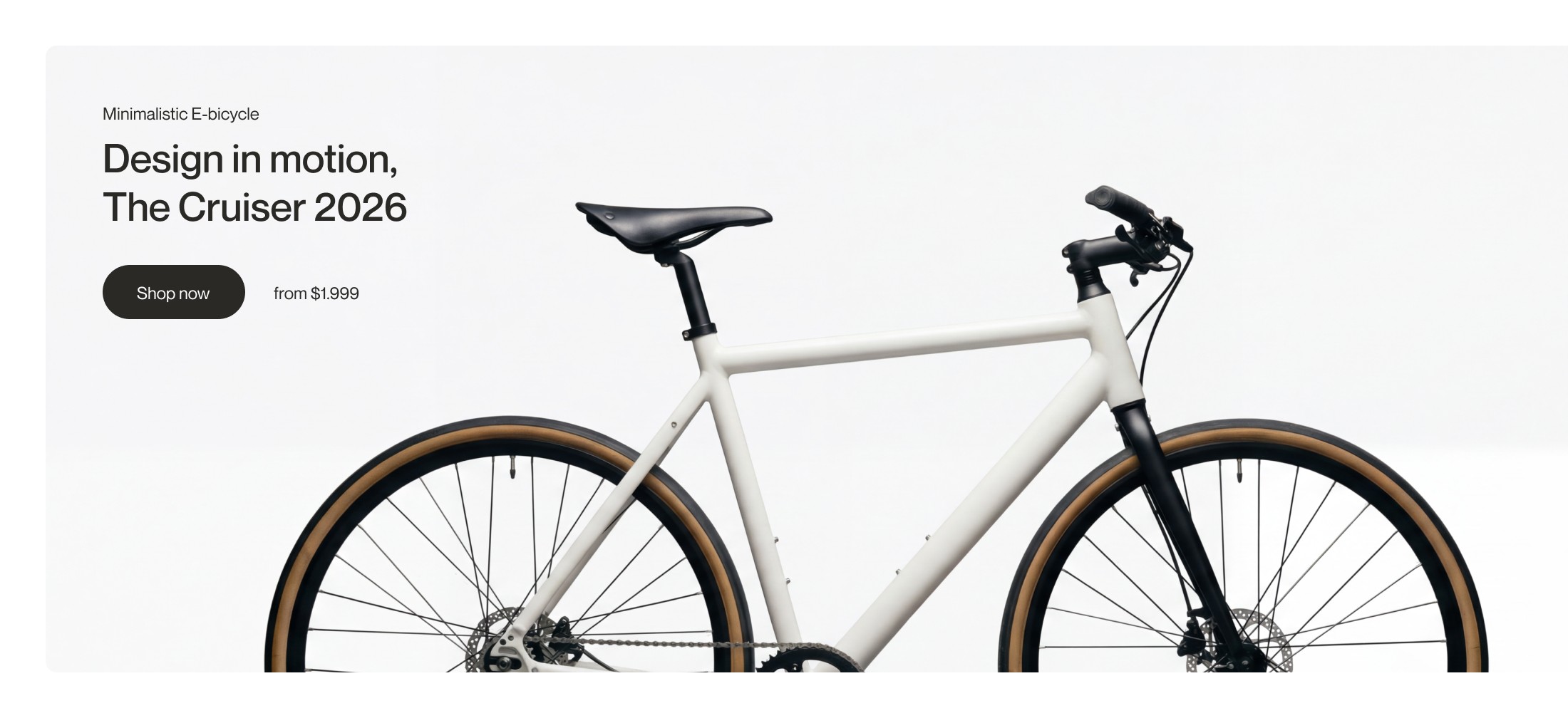
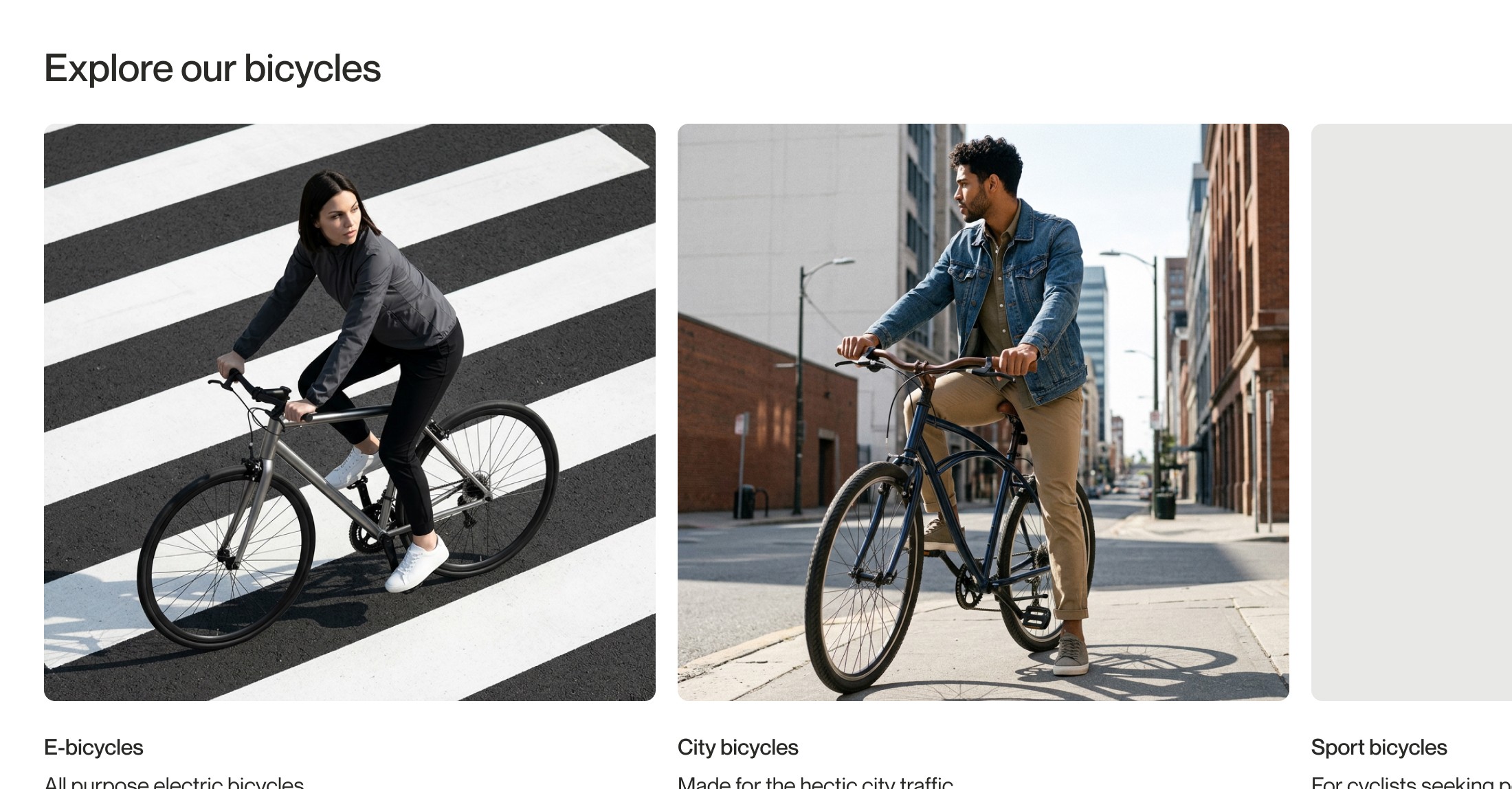
Utilize Shopify Data and Actions
Connect with your Shopify store and auto-sync product data. Add eCommerce actions such as ‘Add to Cart’ and integrate with popular Shopify apps.
Odio
Free
w
1680
100%
Preview
Publish
Layouts
Search
Ctrl + F

Pages
Sections
Templates
Starter
Carts
Pro
Navigations
Starter
Blog posts




All layout types supported
Design your entire Shopify store in Figma, publish through Instant. All layout types in Instant are supported.
Get started in seconds
Simply copy any frame in Figma and paste it into the Instant Page Builder.
Figma to Shopify with AI
Generate a prompt
We’ll generate and prepare a ready-to-use prompt from your selected frame.
Create Instant account
Generate prompt
AI Mode
Classic
Pixel perfect copy
Your organization of layers and names will stay the same, making it easy to continue from where you left off.
Velasca
Free
w
1680
100%
Preview
Publish
Layers
Search
Ctrl + F
Pixel perfect copy
Your organization of layers and names will stay the same, making it easy to continue from where you left off.
Velasca
Free
w
1680
100%
Preview
Publish
Layers
Search
Ctrl + F
Utilize Shopify Data and Actions
Connect with your Shopify store and auto-sync product data. Add eCommerce actions such as ‘Add to Cart’ and integrate with popular Shopify apps.
Veloce
Free
w
1680
100%
Preview
Publish
Shopify data
Connected
Cruiser 2026
Search
Ctrl + F
Image 1
Image 2
General
1
Product Title
Cruiser 2026
Vendor
Veloce
Price
1
Price
$1999
Compare price
$2299
Utilize Shopify Data and Actions
Connect with your Shopify store and auto-sync product data. Add eCommerce actions such as ‘Add to Cart’ and integrate with popular Shopify apps.
Veloce
Free
w
1680
100%
Preview
Publish
Shopify data
Connected
Cruiser 2026
Search
Ctrl + F
Image 1
Image 2
General
1
Product Title
Cruiser 2026
Vendor
Veloce
Price
1
Price
$1999
Compare price
$2299
All layout types supported
Design your entire Shopify store in Figma, publish through Instant. All layout types in Instant are supported.
Odio
Free
w
1680
100%
Preview
Publish
Layouts
Search
Ctrl + F
Pages
Sections
Templates
Starter
Carts
Pro
Navigations
Starter
Blog posts
All layout types supported
Design your entire Shopify store in Figma, publish through Instant. All layout types in Instant are supported.
Odio
Free
w
1680
100%
Preview
Publish
Layouts
Search
Ctrl + F
Pages
Sections
Templates
Starter
Carts
Pro
Navigations
Starter
Blog posts
From design to a fully functional layout
Transform your Figma designs into fully responsive, performance-optimized, and beautifully animated pages, built to convert.
Fully responsive & optimized for mobile
Connect with your Shopify store and auto-sync product data. Add eCommerce actions such as ‘Add to Cart’ and integrate with popular Shopify apps.
Connect with your Shopify store and auto-sync product data. Add eCommerce actions such as ‘Add to Cart’ and integrate with popular Shopify apps.
Aelora
eCommerce store
Pages
Home
Product Detail Page
Product Collection
Header
Footer
Layers
Frame
Frame
Frame
Frame
Frame
Frame

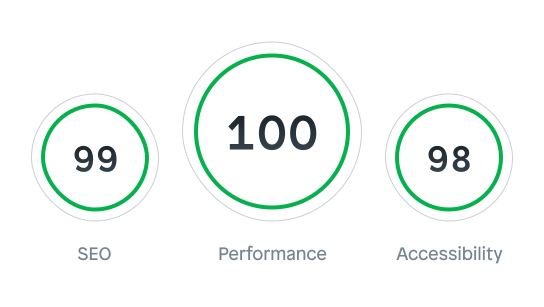
Best practices for perfmance & SEO
Built to rank, built to convert. Every page comes optimized for speed and SEO best practices. With clean, performant code under the hood.
Built to rank, built to convert. Every page comes optimized for speed and SEO best practices. With clean, performant code under the hood.
Google Lighthouse
Animate your designs
Add motion that matters, scroll animations, hover effects, tickers, and more. Every interaction, fully in your control.
Add motion that matters, scroll animations, hover effects, tickers, and more. Every interaction, fully in your control.

Page Loaded
Animation
Fade up
Speed
300
Delay
0
Replay
Yes
No
Instant makes it easy
Design it in Figma. Launch it as a live store. Just four steps between you and your first sale.
From images to complete Shopify stores with one app
From images to complete Shopify stores with one app
From images to complete Shopify stores with one app
Create everything your store needs: a home page, PDPs, landing pages, theme sections, popups, navigation, cart drawer, & more.
Create everything your store needs: a home page, PDPs, landing pages, theme sections, popups, navigation, cart drawer, & more.

Landing Pages
Create and publish an unlimited number of landing pages, tailored to match your campaigns, audiences, personas, and offers.
Learn more

Shopify Sections
Ready to elevate your Shopify theme? Quickly create custom sections in minutes and add them to any page in your Shopify store.
Learn more

Product Page Templates
Build your Shopify product page templates in just 5 minutes. Tailor them to showcase subscriptions, variants, and more, exactly the way you envision.
Learn more

Cart Drawer
Create a fully customizable Shopify cart drawer with upsells, rewards, add-ons, advanced analytics, & more.
Learn more

Collection templates
Design everything from sleek, single-product highlights to dynamic, multi-item grids with images, pricing, and badges.
Learn more

Shopify Home page
Create a first impression that represents your brand and invites visitors to explore what you have to offer.
Learn more
Frequent questions
Frequent questions
Find answers
Find answers
Still have questions?
Yes, the Figma to Shopify plugin is completely free to use, with no limitations on how many designs you can export. However, the amount of pages or sections you can publish depends on your Instant Page Builder plan. Luckily - with Instant’s free plan, you can already export 1 section and 1 page to be published on your Shopify store! To export and publish more than this - you will need to upgrade your Instant plan.
This depends on which Instant plan you select. With Instant’s free plan, exporting 1 page and 1 section to your Shopify store is free! For additional published pages or sections, you can upgrade your Instant plan to fit your needs.
Since launching the original plugin earlier this year, over 6,200 creators have used this plugin, making it the most popular Figma to Shopify plugin on Figma! To make our popular plugin even better, we made a few improvements. What’s new in Instant 2.0? Easily copy any Figma design—whether you’re using auto-layout or not, it's up to you! Forget about nesting or ordered layers—Instant 2.0 will convert everything perfectly. Mobile responsive by default, ensuring your designs look stunning on any device. How it works: 1. Install the plugin for free in the Figma community (app store) 2. Copy any Figma frame with the plugin 3. Paste the copied Figma frame in Instant 4. Create an Instant account 5. Connect your Shopify store to Instant 6. Add interactions and make your pages dynamic and responsive with just a few clicks 7. Export your Page or Section directly to Shopify What you’ll need: A Figma account, an Instant account (free), and a Shopify store.
Going from Figma to Shopify with our plugin is a complete code free process. However, a basic understanding of Design principles will help you speed up the workflow.
To get help using this plugin, you can watch our Figma to Shopify tutorial, read our Figma to Shopify guide, or ask questions in our Instant Slack Community.
Instant is a no-code Shopify page builder. With Instant, Shopify merchants and agencies can build high-converting landing pages and sections without writing code or worrying about page speed.
The Figma to Shopify plugin by Instant is a tool designed to streamline the process of converting design prototypes into functional eCommerce pages. By using this plugin, users can effortlessly copy any frame from Figma and paste it into the Instant interface, maintaining all original design layers and structures. This seamless transition ensures that design integrity is preserved while integrating Shopify's powerful eCommerce functionalities. The plugin also syncs with Shopify product data, allowing designers to easily create dynamic, product-driven pages. Also, the Figma to Shopify plugin supports essential eCommerce actions, such as the 'Add to Cart' buttons, directly within the design interface. Users can publish these designs directly to Shopify, ensuring that performance is not compromised during the transition from design to live site. The plugin is compatible with all devices, allowing for responsive design adjustments that cater to various screen sizes. With the added benefit of a free Figma UI kit featuring auto-layout capabilities, designers have everything they need to create visually appealing and functional Shopify pages.
Seamless Figma to Shopify integration: The Figma to Shopify plugin by Instant facilitates direct copying of Figma frames into the Instant interface while preserving all layers and design elements. This ensures that the design's visual integrity remains intact during the transition. The plugin makes workflow more efficient by eliminating the need for manual coding adjustments. Designers can quickly move from prototype to live Shopify pages without losing the essence of the design. Sync with Shopify product data: One of the key features of this plugin is its ability to sync seamlessly with Shopify product data. This allows designers to create dynamic pages that reflect real-time product information directly from Shopify's backend. The design automatically reflects these changes as products are added, removed, or updated in Shopify. This feature helps users maintain up-to-date and accurate product pages without the need for manual updates. Support for eCommerce actions: The plugin supports incorporating essential eCommerce actions, such as 'Add to Cart' buttons, directly within the design interface. This capability enables designers to create interactive and functional online store elements without writing code. By embedding these actions into the design phase, the plugin streamlines the development process and ensures that the final product is visually appealing and fully functional. Responsive design compatibility: Ensuring a consistent user experience across all devices is crucial for online stores, and the Figma to Shopify plugin excels in this area by supporting responsive design. Designers can adjust their layouts to be compatible with various screen sizes, from desktops to mobile devices. This feature ensures that the online store maintains a professional and user-friendly appearance, regardless of how customers access it. Free Figma UI kit with auto-layout: The plugin includes a free Figma UI kit with auto-layout capabilities to provide more assistance to designers. This kit provides a collection of pre-designed elements and layouts that can be easily customized to fit specific needs. The auto-layout feature helps maintain consistent spacing and alignment, speeding up the design process and ensuring a polished final product. Designers have access to a comprehensive set of tools to enhance their workflow and produce high-quality Shopify pages.
Install the plugin: To begin using the Figma to Shopify plugin by Instant, first install the plugin from the Figma community or the Instant website. Once installed, the plugin integrates directly into your Figma interface. This integration lets you access the plugin’s features directly within your design workspace. Installation is quick and straightforward, setting the stage for a smooth workflow. The plugin's user-friendly installation process ensures that even beginners can get started without hassle. This initial step is crucial for laying the groundwork for efficient design and development. Copy and paste Figma frames: With the plugin installed, you can copy any frame from your Figma design and paste it into the Instant plugin. This process preserves all design layers and elements, ensuring the integrity of the designs remains intact. The plugin then converts these frames into Shopify-compatible sections. This seamless transition from Figma to Shopify saves time and maintains design consistency. By retaining the original design's fidelity, you can be confident that your Shopify store accurately represents your vision. This feature enhances productivity by eliminating the need for redundant design work. Sync with Shopify product data: Next, sync your design with Shopify product data. This feature allows your designs to dynamically reflect real-time product information from your Shopify store. By linking product data directly to your Figma designs, you can create pages that automatically update with changes in your Shopify inventory. This synchronization is crucial for maintaining accurate and up-to-date product displays. Keeping product information current on your designs ensures that customers always see the latest offerings. This integration helps avoid manual updates, which reduces errors and saves time. Add eCommerce actions: Using the plugin, you can directly incorporate essential eCommerce actions, such as the 'Add to Cart' buttons, into your design. This step ensures your designs are visually appealing, functional, and ready for eCommerce. Adding these actions during the design phase eliminates the need for additional coding later. This integration helps streamline the development process, resulting in a fully functional online store page. Embedding eCommerce features early ensures the design and user experience are aligned and enhances the overall efficiency of your workflow. Publish to Shopify: Finally, publish your designed pages directly to Shopify using the Instant plugin. This feature allows you to transfer your designs to your Shopify store without affecting performance. This ensures a quick and efficient transition from design to live site. Your Shopify store will instantly reflect your latest Figma designs, allowing real-time updates and iterations. This direct publishing process minimizes downtime and speeds up the deployment of new designs. You can keep your online store fresh and engaging for visitors by enabling immediate updates.
Streamlined design to development workflow: The Figma to Shopify plugin significantly simplifies the workflow from design to development. By allowing designers to transfer their Figma designs into Shopify directly, the plugin eliminates the need for manual coding. This efficiency reduces development time and ensures the design vision is accurately implemented. As a result, store owners can launch new pages and updates more quickly. This seamless transition from design to development enhances overall productivity and ensures a faster time-to-market for new features and updates. Enhanced design consistency: Maintaining design consistency across an online store is crucial for branding and user experience. The plugin ensures that all Figma design elements and layers are preserved when transferred to Shopify. This consistency helps in creating a cohesive and professional-looking online store. It also ensures that the user experience remains uniform across different pages and devices. The plugin reinforces brand identity and improves customer trust and engagement by maintaining a consistent design. Real-time product data integration: The ability to sync with Shopify product data means that store pages can automatically update with the latest product information. This feature is particularly beneficial for dynamic product displays and inventory management. It makes sure that customers always see the most up-to-date product details, which can enhance the shopping experience and reduce errors. Real-time updates also help manage stock levels more effectively, minimizing the risk of overselling or displaying outdated information. This integration ultimately leads to a more efficient and accurate product management process. Increased efficiency and productivity: The plugin simplifies workflow by integrating design and eCommerce functionalities. Designers can make changes in Figma and instantly see those changes reflected in Shopify. This increased efficiency can lead to higher productivity and faster turnaround times for new projects or updates. Store owners can respond more rapidly to market trends and customer feedback. This agility allows businesses to stay competitive and adapt quickly to changing market conditions, ultimately driving growth and success.
Utilize Figma's auto-layout: Auto-layout in Figma is a powerful feature that helps create responsive designs. It ensures that your design elements adjust dynamically to different screen sizes, which is essential for creating a consistent user experience across all devices. Adjustments to one element can also automatically reflow the rest of the design, simplifying the process of making changes. Leverage “components” and “styles”: Using “components” and “styles” in Figma can greatly enhance the efficiency and consistency of your designs. “Components” allow you to create reusable design elements that can be updated globally. Meanwhile, “styles” help maintain consistent typography, colors, and effects throughout your design. This speeds up the design process and ensures uniformity across your Shopify pages. Optimize images for web: Images play a crucial role in eCommerce design, but they should be optimized for web use. In Figma, ensure your images are properly formatted to reduce load times without sacrificing quality. This helps maintain fast page load speeds, which is critical for user experience and SEO. Additionally, using the correct image formats and resolutions can prevent visual inconsistencies when implementing the designs on Shopify. Test designs across devices: Testing your Figma designs on various devices is important to ensure they are responsive and user-friendly. Use Figma’s prototyping tools to preview how your design will look and function on different screen sizes. This testing phase helps identify any issues with responsiveness or usability before transferring the design to Shopify. Addressing these issues early ensures a smoother implementation and a better end-user experience.
Regularly update designs: Maintaining a Shopify store involves regularly updating its design to keep it fresh and relevant. Use Figma to create and update new designs, ensuring that your store stays current with market trends and seasonal changes. Regular updates can attract and retain customers by providing a visually appealing and user-friendly experience. This continuous design evolution allows you to experiment with new layouts and features that enhance the shopping experience. Keeping your store visually updated shows customers that you are engaged and invested in offering them the best online shopping experience. Monitor performance and user feedback: Keep an eye on your store’s performance metrics and gather user feedback to identify areas for improvement. Use Figma to make necessary design adjustments based on this feedback, ensuring your store meets customer expectations. Continuous monitoring and frequent improvements can enhance the user experience and increase sales by addressing pain points and optimizing the shopping process. Regularly reviewing analytics and feedback helps you stay proactive in managing your store's performance. This approach lets you quickly address issues and implement design changes that positively impact user satisfaction and conversion rates. Collaborate with your team: Effective maintenance involves collaboration between designers, developers, and marketers to ensure a cohesive approach. Use Figma’s collaborative tools to share updates, gather input, and implement changes efficiently across the team. Team collaboration ensures that everyone is aligned and that the store operates smoothly, benefiting from diverse perspectives and expertise. Regular team meetings and updates through Figma help streamline the workflow and inform everyone about ongoing changes. This collaborative effort helps establish a unified strategy to address various aspects of the store's maintenance and growth. Plan for long-term improvements: Maintain a roadmap for long-term improvements to your Shopify store, considering future growth and market trends. Use Figma to prototype and plan these enhancements, ensuring they align with your business goals and customer needs. Long-term planning helps sustain growth and adapt to evolving customer needs by anticipating future challenges and opportunities. This strategic approach lets you set clear milestones and objectives for your store's growth. Regularly revisiting and updating your long-term plan ensures that your store remains competitive and responsive to changes in the industry. Ensure consistent branding: Consistent branding across all touchpoints of your Shopify store is crucial for building a strong and recognizable identity. Use Figma to design and maintain brand elements such as logos, color schemes, and typography, making sure that they are consistently applied throughout your store. Consistency in branding helps establish trust and familiarity with your customers, making your store more memorable. Regularly review and update your brand guidelines in Figma to reflect any brand strategy or positioning changes. Ensuring all team members access these guidelines helps maintain a cohesive brand presence across all marketing channels and customer interactions.
Yes, the Figma to Shopify plugin is completely free to use, with no limitations on how many designs you can export. However, the amount of pages or sections you can publish depends on your Instant Page Builder plan. Luckily - with Instant’s free plan, you can already export 1 section and 1 page to be published on your Shopify store! To export and publish more than this - you will need to upgrade your Instant plan.
This depends on which Instant plan you select. With Instant’s free plan, exporting 1 page and 1 section to your Shopify store is free! For additional published pages or sections, you can upgrade your Instant plan to fit your needs.
Since launching the original plugin earlier this year, over 6,200 creators have used this plugin, making it the most popular Figma to Shopify plugin on Figma! To make our popular plugin even better, we made a few improvements. What’s new in Instant 2.0? Easily copy any Figma design—whether you’re using auto-layout or not, it's up to you! Forget about nesting or ordered layers—Instant 2.0 will convert everything perfectly. Mobile responsive by default, ensuring your designs look stunning on any device. How it works: 1. Install the plugin for free in the Figma community (app store) 2. Copy any Figma frame with the plugin 3. Paste the copied Figma frame in Instant 4. Create an Instant account 5. Connect your Shopify store to Instant 6. Add interactions and make your pages dynamic and responsive with just a few clicks 7. Export your Page or Section directly to Shopify What you’ll need: A Figma account, an Instant account (free), and a Shopify store.
Going from Figma to Shopify with our plugin is a complete code free process. However, a basic understanding of Design principles will help you speed up the workflow.
To get help using this plugin, you can watch our Figma to Shopify tutorial, read our Figma to Shopify guide, or ask questions in our Instant Slack Community.
Instant is a no-code Shopify page builder. With Instant, Shopify merchants and agencies can build high-converting landing pages and sections without writing code or worrying about page speed.
The Figma to Shopify plugin by Instant is a tool designed to streamline the process of converting design prototypes into functional eCommerce pages. By using this plugin, users can effortlessly copy any frame from Figma and paste it into the Instant interface, maintaining all original design layers and structures. This seamless transition ensures that design integrity is preserved while integrating Shopify's powerful eCommerce functionalities. The plugin also syncs with Shopify product data, allowing designers to easily create dynamic, product-driven pages. Also, the Figma to Shopify plugin supports essential eCommerce actions, such as the 'Add to Cart' buttons, directly within the design interface. Users can publish these designs directly to Shopify, ensuring that performance is not compromised during the transition from design to live site. The plugin is compatible with all devices, allowing for responsive design adjustments that cater to various screen sizes. With the added benefit of a free Figma UI kit featuring auto-layout capabilities, designers have everything they need to create visually appealing and functional Shopify pages.
Seamless Figma to Shopify integration: The Figma to Shopify plugin by Instant facilitates direct copying of Figma frames into the Instant interface while preserving all layers and design elements. This ensures that the design's visual integrity remains intact during the transition. The plugin makes workflow more efficient by eliminating the need for manual coding adjustments. Designers can quickly move from prototype to live Shopify pages without losing the essence of the design. Sync with Shopify product data: One of the key features of this plugin is its ability to sync seamlessly with Shopify product data. This allows designers to create dynamic pages that reflect real-time product information directly from Shopify's backend. The design automatically reflects these changes as products are added, removed, or updated in Shopify. This feature helps users maintain up-to-date and accurate product pages without the need for manual updates. Support for eCommerce actions: The plugin supports incorporating essential eCommerce actions, such as 'Add to Cart' buttons, directly within the design interface. This capability enables designers to create interactive and functional online store elements without writing code. By embedding these actions into the design phase, the plugin streamlines the development process and ensures that the final product is visually appealing and fully functional. Responsive design compatibility: Ensuring a consistent user experience across all devices is crucial for online stores, and the Figma to Shopify plugin excels in this area by supporting responsive design. Designers can adjust their layouts to be compatible with various screen sizes, from desktops to mobile devices. This feature ensures that the online store maintains a professional and user-friendly appearance, regardless of how customers access it. Free Figma UI kit with auto-layout: The plugin includes a free Figma UI kit with auto-layout capabilities to provide more assistance to designers. This kit provides a collection of pre-designed elements and layouts that can be easily customized to fit specific needs. The auto-layout feature helps maintain consistent spacing and alignment, speeding up the design process and ensuring a polished final product. Designers have access to a comprehensive set of tools to enhance their workflow and produce high-quality Shopify pages.
Install the plugin: To begin using the Figma to Shopify plugin by Instant, first install the plugin from the Figma community or the Instant website. Once installed, the plugin integrates directly into your Figma interface. This integration lets you access the plugin’s features directly within your design workspace. Installation is quick and straightforward, setting the stage for a smooth workflow. The plugin's user-friendly installation process ensures that even beginners can get started without hassle. This initial step is crucial for laying the groundwork for efficient design and development. Copy and paste Figma frames: With the plugin installed, you can copy any frame from your Figma design and paste it into the Instant plugin. This process preserves all design layers and elements, ensuring the integrity of the designs remains intact. The plugin then converts these frames into Shopify-compatible sections. This seamless transition from Figma to Shopify saves time and maintains design consistency. By retaining the original design's fidelity, you can be confident that your Shopify store accurately represents your vision. This feature enhances productivity by eliminating the need for redundant design work. Sync with Shopify product data: Next, sync your design with Shopify product data. This feature allows your designs to dynamically reflect real-time product information from your Shopify store. By linking product data directly to your Figma designs, you can create pages that automatically update with changes in your Shopify inventory. This synchronization is crucial for maintaining accurate and up-to-date product displays. Keeping product information current on your designs ensures that customers always see the latest offerings. This integration helps avoid manual updates, which reduces errors and saves time. Add eCommerce actions: Using the plugin, you can directly incorporate essential eCommerce actions, such as the 'Add to Cart' buttons, into your design. This step ensures your designs are visually appealing, functional, and ready for eCommerce. Adding these actions during the design phase eliminates the need for additional coding later. This integration helps streamline the development process, resulting in a fully functional online store page. Embedding eCommerce features early ensures the design and user experience are aligned and enhances the overall efficiency of your workflow. Publish to Shopify: Finally, publish your designed pages directly to Shopify using the Instant plugin. This feature allows you to transfer your designs to your Shopify store without affecting performance. This ensures a quick and efficient transition from design to live site. Your Shopify store will instantly reflect your latest Figma designs, allowing real-time updates and iterations. This direct publishing process minimizes downtime and speeds up the deployment of new designs. You can keep your online store fresh and engaging for visitors by enabling immediate updates.
Streamlined design to development workflow: The Figma to Shopify plugin significantly simplifies the workflow from design to development. By allowing designers to transfer their Figma designs into Shopify directly, the plugin eliminates the need for manual coding. This efficiency reduces development time and ensures the design vision is accurately implemented. As a result, store owners can launch new pages and updates more quickly. This seamless transition from design to development enhances overall productivity and ensures a faster time-to-market for new features and updates. Enhanced design consistency: Maintaining design consistency across an online store is crucial for branding and user experience. The plugin ensures that all Figma design elements and layers are preserved when transferred to Shopify. This consistency helps in creating a cohesive and professional-looking online store. It also ensures that the user experience remains uniform across different pages and devices. The plugin reinforces brand identity and improves customer trust and engagement by maintaining a consistent design. Real-time product data integration: The ability to sync with Shopify product data means that store pages can automatically update with the latest product information. This feature is particularly beneficial for dynamic product displays and inventory management. It makes sure that customers always see the most up-to-date product details, which can enhance the shopping experience and reduce errors. Real-time updates also help manage stock levels more effectively, minimizing the risk of overselling or displaying outdated information. This integration ultimately leads to a more efficient and accurate product management process. Increased efficiency and productivity: The plugin simplifies workflow by integrating design and eCommerce functionalities. Designers can make changes in Figma and instantly see those changes reflected in Shopify. This increased efficiency can lead to higher productivity and faster turnaround times for new projects or updates. Store owners can respond more rapidly to market trends and customer feedback. This agility allows businesses to stay competitive and adapt quickly to changing market conditions, ultimately driving growth and success.
Utilize Figma's auto-layout: Auto-layout in Figma is a powerful feature that helps create responsive designs. It ensures that your design elements adjust dynamically to different screen sizes, which is essential for creating a consistent user experience across all devices. Adjustments to one element can also automatically reflow the rest of the design, simplifying the process of making changes. Leverage “components” and “styles”: Using “components” and “styles” in Figma can greatly enhance the efficiency and consistency of your designs. “Components” allow you to create reusable design elements that can be updated globally. Meanwhile, “styles” help maintain consistent typography, colors, and effects throughout your design. This speeds up the design process and ensures uniformity across your Shopify pages. Optimize images for web: Images play a crucial role in eCommerce design, but they should be optimized for web use. In Figma, ensure your images are properly formatted to reduce load times without sacrificing quality. This helps maintain fast page load speeds, which is critical for user experience and SEO. Additionally, using the correct image formats and resolutions can prevent visual inconsistencies when implementing the designs on Shopify. Test designs across devices: Testing your Figma designs on various devices is important to ensure they are responsive and user-friendly. Use Figma’s prototyping tools to preview how your design will look and function on different screen sizes. This testing phase helps identify any issues with responsiveness or usability before transferring the design to Shopify. Addressing these issues early ensures a smoother implementation and a better end-user experience.
Regularly update designs: Maintaining a Shopify store involves regularly updating its design to keep it fresh and relevant. Use Figma to create and update new designs, ensuring that your store stays current with market trends and seasonal changes. Regular updates can attract and retain customers by providing a visually appealing and user-friendly experience. This continuous design evolution allows you to experiment with new layouts and features that enhance the shopping experience. Keeping your store visually updated shows customers that you are engaged and invested in offering them the best online shopping experience. Monitor performance and user feedback: Keep an eye on your store’s performance metrics and gather user feedback to identify areas for improvement. Use Figma to make necessary design adjustments based on this feedback, ensuring your store meets customer expectations. Continuous monitoring and frequent improvements can enhance the user experience and increase sales by addressing pain points and optimizing the shopping process. Regularly reviewing analytics and feedback helps you stay proactive in managing your store's performance. This approach lets you quickly address issues and implement design changes that positively impact user satisfaction and conversion rates. Collaborate with your team: Effective maintenance involves collaboration between designers, developers, and marketers to ensure a cohesive approach. Use Figma’s collaborative tools to share updates, gather input, and implement changes efficiently across the team. Team collaboration ensures that everyone is aligned and that the store operates smoothly, benefiting from diverse perspectives and expertise. Regular team meetings and updates through Figma help streamline the workflow and inform everyone about ongoing changes. This collaborative effort helps establish a unified strategy to address various aspects of the store's maintenance and growth. Plan for long-term improvements: Maintain a roadmap for long-term improvements to your Shopify store, considering future growth and market trends. Use Figma to prototype and plan these enhancements, ensuring they align with your business goals and customer needs. Long-term planning helps sustain growth and adapt to evolving customer needs by anticipating future challenges and opportunities. This strategic approach lets you set clear milestones and objectives for your store's growth. Regularly revisiting and updating your long-term plan ensures that your store remains competitive and responsive to changes in the industry. Ensure consistent branding: Consistent branding across all touchpoints of your Shopify store is crucial for building a strong and recognizable identity. Use Figma to design and maintain brand elements such as logos, color schemes, and typography, making sure that they are consistently applied throughout your store. Consistency in branding helps establish trust and familiarity with your customers, making your store more memorable. Regularly review and update your brand guidelines in Figma to reflect any brand strategy or positioning changes. Ensuring all team members access these guidelines helps maintain a cohesive brand presence across all marketing channels and customer interactions.
Still have questions?












Try Instant free today
Grow your Shopify store with Instant
Already have an account?
© Instant Commerce

© Instant Commerce